From Document to Image: When and How to Convert PDF to JPG
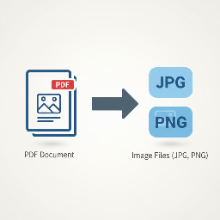
We're all familiar with converting images into a single PDF for easy sharing. But what about the other way around? There are many situations where you might need to extract a page from a PDF and save it as an image file like a JPG or PNG. Fortunately, the process is just as simple with the help of free online converters.
Why Convert a PDF to an Image?
While PDF is the standard for documents, images have their own unique advantages. Here are a few common reasons you might need to convert a PDF to an image:
- Social Media Sharing: Platforms like Instagram and Twitter are image-based. If you want to share a snippet from a report, an infographic, or a flyer that's in a PDF, you'll need to convert it to an image first.
- Website and Blog Content: You can't directly embed a PDF page into most website builders or blog posts. Converting it to a JPG allows you to display it just like any other picture.
- Presentations: Dropping a JPG or PNG into a PowerPoint or Google Slides presentation is often easier and more reliable than trying to embed a PDF document.
- Editing and Annotation: Sometimes you just want to quickly mark up a single page. Opening it in a simple image editor can be faster than using a full-featured PDF program.
How to Convert PDF to JPG Online
Using a free online PDF to image converter is the quickest method. The steps are generally the same across most tools:
- Find a Converter: Search for "free PDF to JPG converter" to find numerous online options.
- Upload Your PDF: Drag and drop your PDF file into the upload area or use the browse button to select it from your device.
- Choose the Conversion Type: Most tools will ask if you want to convert every page into an individual image or extract specific pages. Select the option you need.
- Select Output Format: Choose your desired image format. Select JPG for photographs and complex images, or PNG for graphics with sharp lines and text for the best quality.
- Convert and Download: Click the "Convert" button. After processing, the tool will provide a link to download your image(s), often packaged in a convenient .zip file if there are multiple pages.
Tips for the Best Results
- Check Image Quality Settings: Some converters allow you to set the DPI (Dots Per Inch) or quality of the output image. For clear, high-quality results, choose a higher setting like 300 DPI.
- Be Mindful of Privacy: When using a free online tool, be cautious about uploading sensitive or confidential documents. Always choose a reputable service that automatically deletes your files from their servers.
- JPG vs. PNG: As a rule of thumb, if the PDF page is mostly a photograph, convert to JPG. If it's mostly text, diagrams, or a logo, convert to PNG to keep it looking sharp.
Converting a PDF to an image is a simple but powerful trick to have up your sleeve. It unlocks your documents and allows you to use their content in a much wider range of applications, from social media to web design.