Save Hours of Typing: How to Convert Images to Word and Excel
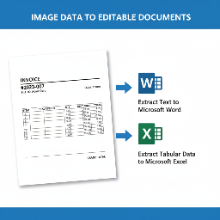
We've all faced the daunting task of re-typing information from a printed document, a screenshot, or a photograph of a table. It's a slow, tedious process that's prone to errors. But what if you could extract all that text and data and place it directly into an editable Word or Excel file in just a few clicks? This is possible with modern image-to-document converters powered by OCR technology.
The Power of Targeted OCR
We've discussed Optical Character Recognition (OCR) before as a way to convert an image to plain text. Image-to-Word and Image-to-Excel converters take this a step further. Instead of just pulling out the raw text, these specialized tools are designed to recognize and preserve the document's structure.
- An Image-to-Word converter will identify paragraphs, headings, lists, and columns, attempting to replicate the original layout in a .docx file.
- An Image-to-Excel converter is even more specialized. It focuses on detecting the grid-like structure of a table, separating the data into the correct rows and columns in a .xlsx spreadsheet.
When is This Useful?
This technology is a massive time-saver for students, researchers, and professionals in any field. Common use cases include:
- Digitizing Archives: Converting scanned pages from old books, reports, or letters into fully editable Word documents.
- Data Entry from Invoices: Capturing line items, quantities, and prices from a photo of an invoice and putting them straight into an Excel sheet for analysis.
- Extracting Data from Reports: Pulling a table from a printed report or a PDF screenshot into a spreadsheet without having to type every number manually.
- Updating Old Documents: If you only have a printed copy of an old contract or resume, you can scan it and convert it to a Word file to make updates.
How to Get the Best Conversion Results
The accuracy of the conversion depends heavily on the quality of the source image. To ensure the OCR tool can do its job effectively, follow these tips:
- Use a High-Quality Scan or Photo: The image should be clear, well-lit, and free of blur. Use a scanner if possible. If using a phone, make sure the document is flat and the camera is held directly above it to avoid distortion.
- Ensure Good Contrast: Clear black text on a plain white background works best. Avoid images with busy backgrounds or poor lighting.
- Check the Language Settings: Many online converters support multiple languages. Make sure you've selected the correct language of the document before you start the conversion.
- Proofread the Output: No OCR system is 100% perfect. Always take a few minutes to review the converted Word or Excel file and correct any small errors the software might have made.
By leveraging free online image-to-Word and image-to-Excel converters, you can eliminate hours of manual data entry from your workflow. It's a powerful example of how smart technology can automate tedious tasks, freeing you up to focus on more important work.